Portfolio Website Creation by HTML & CSS
Project : Portfolio Website Creation
Project Thumbnail
Project Video
📘 What is HTML?
HTML (HyperText Markup Language) is the standard language used to create the structure of web pages. It defines elements like headings, paragraphs, links, images, and more.
🧩 HTML Basics
Tag: Defines an element. Example:
<p>Hello</p>Element: The complete set of start tag, content, and end tag.
Attributes: Extra info inside a tag. Example:
<img src="image.jpg" alt="photo">Common Tags:
<h1> to <h6>: Headings<p>: Paragraph<a href="url">: Link<img src="...">: Image<ul>, <ol>, <li>: Lists<table>: Table
✍️ Basic HTML Page Structure
<!DOCTYPE html>
<html>
<head>
  <title>My First Page</title>
</head>
<body>
  <h1>Hello World</h1>
  <p>This is my first HTML page.</p>
</body>
</html>
🎨 What is CSS?
CSS (Cascading Style Sheets) is used to style and design HTML pages. It controls colors, fonts, layouts, spacing, and more.
🧩 CSS Basics
Syntax:
selector {property: value;
}Selectors: Target HTML elements.
p { color: blue; }→ Makes all paragraphs blue.#id { }→ Targets a specific element by ID..class { }→ Targets elements with a class name.
✍️ Ways to Add CSS
Inline CSS – Inside an element.
<p style="color:red;">This is red text</p>Internal CSS – Inside
<style>in<head>.<style>
body { background-color: lightyellow; }
</style>External CSS – In a separate
.cssfile.<link rel="stylesheet" href="style.css">
📌 Common CSS Properties
| Purpose | Example | Description |
|---|---|---|
| Text Color | color: green; | Changes text color |
| Background | background-color: lightblue; | Sets background color |
| Font Size | font-size: 20px; | Adjusts text size |
| Text Align | text-align: center; | Centers text |
| Padding | padding: 10px; | Space inside an element |
| Margin | margin: 15px; | Space outside an element |
| Border | border: 1px solid black; | Adds border |
📊 Basic HTML + CSS Example
<!DOCTYPE html>
<html>
<head>
  <title>Styled Page</title>
  <style>
    body { background-color: #f0f8ff; font-family: Arial; }
    h1 { color: darkblue; text-align: center; }
    p { color: gray; font-size: 18px; }
  </style>
</head>
<body>
  <h1>Welcome to My Website</h1>
  <p>This page is styled using CSS.</p>
</body>
</html>
Overview
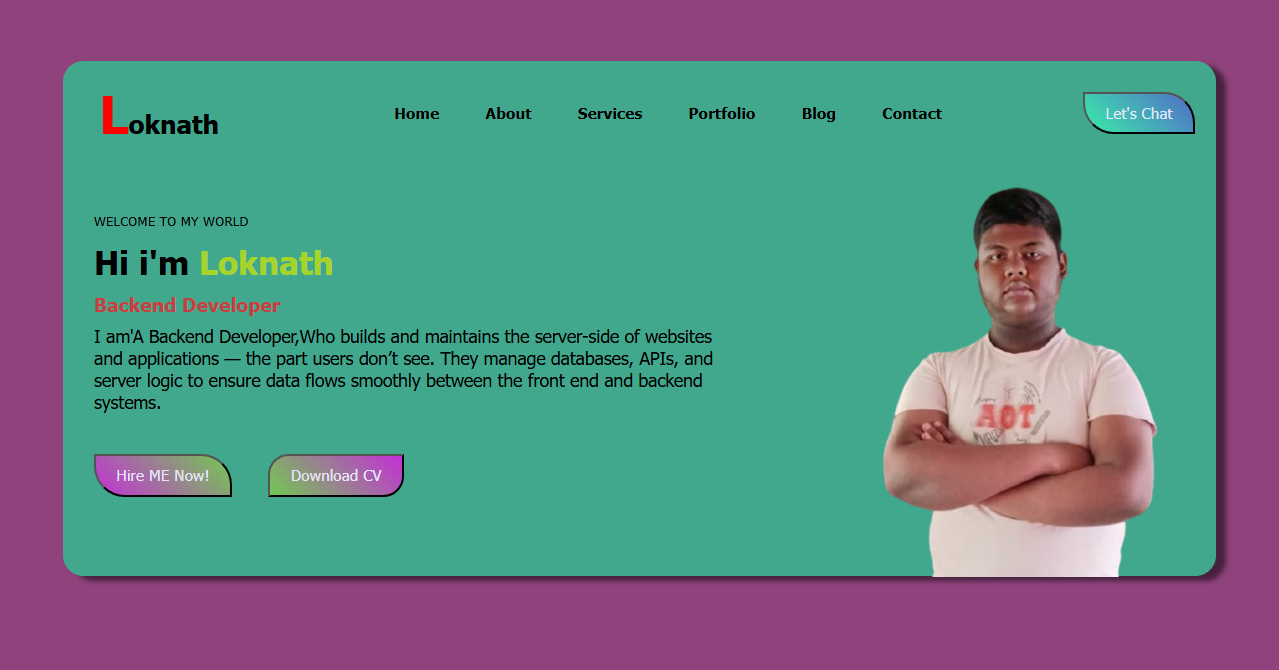
This project is a Personal Portfolio Website designed using HTML and CSS. It serves as a simple yet attractive digital introduction page that highlights personal identity, profession, and creative skills. The layout is perfect for displaying a student’s or designer’s profile on a computer center’s website.
Breakdown of the Project
HTML Structure:
The HTML file provides a clean structure with sections for:
A navigation bar that includes links such as Home, About, Services, Portfolio, Blog, and Contact.
A profile section that introduces the person’s name, profession, and a short description.
Buttons for actions like “Hire Me Now” and “Download CV.”
A photo aligned to the right, representing the individual.
The project links an external CSS file (style.css) for styling and uses semantic HTML elements for readability and organization.
CSS Styling:
The CSS file controls the entire visual appearance of the page, giving it a bright and creative look.
Container and Layout:
The .container class centers all the content with padding, rounded corners, and box shadows to create depth.
Background and Colors:
The main background is a rich maroon (#990833), and the container uses a lighter rose shade (#bb6e9b) for contrast.
Navigation Bar:
The .nav section uses Flexbox to evenly space the logo and menu links. All text elements use simple, clean fonts (Tahoma) for clarity.
Buttons:
Two buttons are designed with linear gradients for visual appeal.
.btnuses a purple-gold gradient for the “Hire Me Now” button..btn1uses a green-gold gradient for the “Download CV” button.
Both buttons include hover effects and rounded edges to enhance interaction.
Typography and Styling Details:
Headings (
h1,h2,h3) and paragraphs (p) are styled with readable sizes and weights.The
::beforeand::afterpseudo-elements add special effects to text, such as adding an initial “S” before the heading and styling the name “Suman” after “Hi I’m.”The image is floated to the right with fixed height and smooth positioning.
Functionality and Interactivity
The design is static but interactive through hover effects and transitions.
When users hover over the navigation links or buttons, they experience color and border transitions that make the site feel alive.
The webpage also adjusts well on medium screen sizes, maintaining alignment and spacing.
Specific Features in the Code
Navigation Menu:
The logo “Suman” is styled to appear bold and unique.
Links are spaced evenly with no text decoration.
The navigation section uses Flexbox for proper alignment.
Profile Section:
Includes a greeting message: “Welcome to My World”.
Displays the heading: “Hi, I’m Suman – Graphic Designer.”
Contains a short paragraph about creativity and the role of graphic design in communication.
Buttons with Hover Effects:
The “Hire Me Now” and “Download CV” buttons have gradient backgrounds and rounded corners.
On hover, buttons change border style and radius, giving a professional motion effect.
Image Integration:
The image file (
IMG-20251016-WA0016__3_-removebg-preview (1).png) is placed on the right side.It visually balances the text area and makes the page more personalized.
How to Add to Your Computer Center Website
To publish this project on your website, follow these steps:
1. HTML File:
Save your code as
index.html.Make sure the CSS file link in the
<head>section is correct:<link rel="stylesheet" href="style.css">
2. CSS File:
Save your stylesheet as
style.cssin the same folder as your HTML file.
3. Image File:
Keep the image file (
IMG-20251016-WA0016__3_-removebg-preview (1).png) in the same directory so it loads properly.
4. Upload to Website:
In WordPress, create a new post under “Projects.”
Use the Custom HTML block to paste your HTML code.
Set your uploaded image as the featured thumbnail.
Publish and preview to confirm layout and styling.
Final Look
The final page displays a professional personal profile section with your name, profession, introduction, and two functional buttons. The background colors, rounded corners, and image make the design visually rich yet minimal.
It’s a perfect example of how HTML and CSS alone can create a modern, elegant personal webpage without the need for JavaScript.
Project by : LOKNATH DAS
Qualification : Class IX
Age : 15
Courses : E-Gyan, E-Gyan(L-2), E-Gyan(L-3)